
Table of Contents
It would be handy if trakked could handle the update for you with a single click. However, this is not technically feasible. A version change always involves manual follow-up work and project-specific adjustments that trakked cannot perform automatically. Afterwards, trakked will be happy to help you monitor your Contao 5.7 installation, provide bug fixes and keep it up to date.
Brief overview
The good news: Updating from Contao 5.3 to 5.7 is, in most cases, much quicker and easier than the major update from Contao 4 to 5. Provided, that is, you followed best practice when updating to Contao 5.3 and did not stick with the legacy content elements. But more on that later.
By the way: It is possible to update directly from Contao 4.13 to Contao 5.7. It is important that you also follow the update guide for Contao 5.3.
As with any update, this one also follows the same basic steps:
- Create a backup
- Check the current status and compatibility of the extensions
- Perform the update
- Complete any follow-up tasks
Please read the entire post before you begin the update. This will give you a complete overview and allow you to adapt the steps to your project.
Preparation
Thorough preparation is essential for a successful update.
Update Contao 5.3 to the latest version
Before you start the update, make sure your existing installation is up to date with the latest version of Contao 5.3. To do this, open the Contao Manager, select ‘Update packages’ and complete any pending migrations and database changes.
Check the compatibility of the extensions
Many extensions that are compatible with Contao 5.3 also work with Contao 5.7. Nevertheless, it’s worth doing a quick check: Check on Packagist or GitHub to see if your extensions support Contao 5.7. A look at open GitHub issues or the date of the last update will give you a good indication. If in doubt, the only thing to do is try it out.
Are you using a ready-made Contango theme?
If you are using a purchased theme, check with the provider to see if it is compatible with Contao 5.7 and whether an update is already available. It's best to clarify any questions you have with the manufacturer's support team before you start the update.
Check PHP version
For Contao 5.7, you need at least PHP 8.3. Check which PHP version is active in your hosting control panel and change it if necessary. We recommend that you always use the latest PHP version on your hosting account.
Create a backup
Once all the prerequisites have been met, create a full backup. The files composer.json and composer.lock, as well as a complete database backup, are particularly important.
You can find out more about backups in the article: The Contao Backup 101.
Start update
We strongly recommend carrying out the update on a copy of the installation. A before-and-after comparison is particularly useful when switching to Twig. But more on that later.
Customise the package version and perform the update
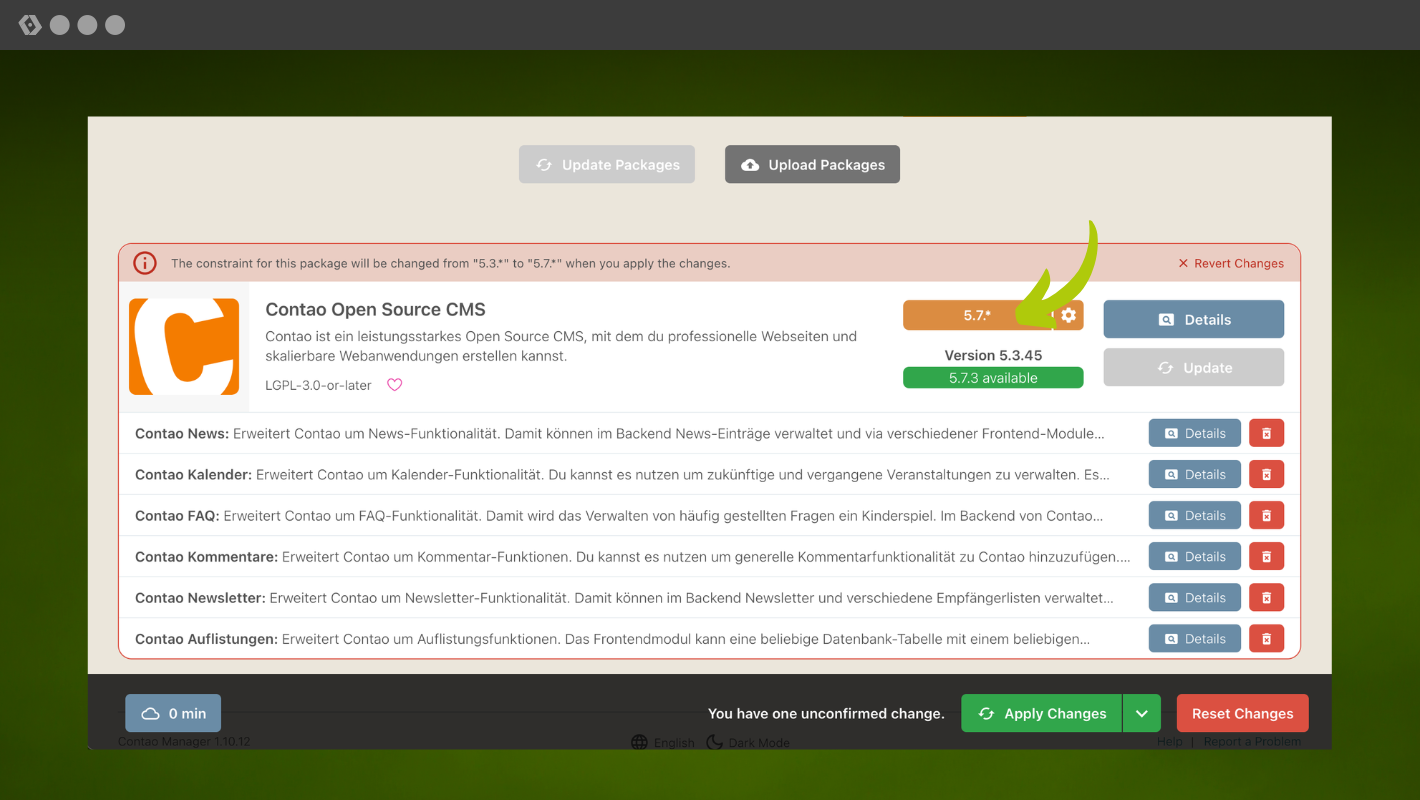
In Contao Manager or directly in the composer.json, change the Contao version from 5.3.* to 5.7.*:
"contao/manager-bundle": "5.7.*"
Also check whether individual extensions require a version update. This is the case, for example, if a new major version of an extension is available. Then start the update via the Contao Manager (“Update packages”) or directly via Composer.
If the update fails, check the Contao Manager output carefully. In most cases, incompatible extensions are the cause.
If you would like to understand more about version constraints and dependencies, we recommend reading our article.
Performing database migrations
Once the update has been successfully completed, carry out all database migrations. Be sure to check all suggested deletions carefully before confirming them.
Has the update been successfully completed, and is at least the backend accessible again? If so, we can move on to the follow-up tasks. If so, you can move on to the follow-up tasks.
Follow-up work
An update from 5.3 to 5.7 automatically includes all changes from versions 5.4, 5.5 and 5.6. You must also take these into account. Please read the relevant announcements:
- Contao 5.4 Announcement | Video | Post on trakked | Changelog
- Contao 5.5 Announcement | Video | Post on trakked | Changelog
- Contao 5.6 Announcement | Video | Post on trakked | Changelog
- Contao 5.7 Announcement | Video | Post on Trakked | Changelog
All new features at a glance
Contao keynote from the 2025 conference in Düsseldorf by Leo Feyer (YouTube)
Twig or HTML5?
Let’s move on to the most exciting and time-consuming part: customising the templates.
The future of Contao is Twig. Contao 5.7 is the last version to support the old HTML5 templates. From Contao 6 onwards, this support will be completely phased out.
A note for anyone who kept the legacy content elements when updating to 5.3: you can still use these with Contao 5.7, but the cleanest approach is to switch to the new, improved Twig version for the content elements as well. The CSS class changes and all the necessary steps are described in the update guide from 4.13 to 5.3.
It is understandable that you want to save time when updating to 5.7 by sticking with the HTML5 templates for the time being. However, you will have to do this work at the latest when updating to Contao 6.
Our clear recommendation: Migrate to Twig now and use only Twig templates from now on.
In brief:
- Keep HTML5 templates: You are almost finished with the update. Check whether all templates are still working and continue with the section Further follow-up work.
- Migrate to Twig (recommended): Read on for our tips on migrating.
Migration to Twig
Since Contao 5.7, there has been a Twig version for all templates. It is the first version of Contao that works 100% with Twig templates at the core.
The procedure is clear: go through each template individually and create the corresponding Twig variant for it.
Example: You have customised the template news_full.html5. Then replace it with news_full.html.twig and transfer your customisations into Twig syntax.
Where possible, only overwrite individual blocks rather than the entire template. However, the news_full template is one of the older templates that only recognises the info block and therefore often needs to be overwritten in its entirety.
Specific example: You have removed the author and customised the date formatting in news_full.html5. Previously, it looked like this:
<?php $this->extend('news_full'); ?>

  <?php $this->block('info'); ? >
    <p class="info"><time datetime="<?= $this->datetime ?>"><?= \Contao\Date::parse("d. F Y", $this->timestamp); ?></time></p >
  <?php $this->endblock(); ?>
The corresponding Twig template news_full.html.twig then looks like this:
{% extends "@Contao/news_full.html.twig" %}

{% block info %}
    <p class="info"><time datetime="{{ datetime }}">{{ timestamp|date("d. F Y") }}</time></p>
{% endblock %}
Much clearer, and the effort involved is kept to a minimum.
Important: You must delete or rename the old HTML5 template so that the new Twig template is recognised. Work in debug mode during the development phase so that template changes take effect immediately without having to manually clear the cache each time.
Whether you prefer to use Template Studio or your IDE (e.g. PhpStorm or Visual Studio Code) is up to you.
Practical tips for migrating to Twig
There is no one-size-fits-all solution, as the customisations required vary greatly from project to project. Some templates contain custom PHP code that can no longer be used directly in Twig and must be moved into filters or functions. The official documentation will help you with this:
AI tools can be a useful aid when converting HTML5 templates to Twig. It is important to note: use them as a tool, not as a fully automated solution. If you do not understand how Contao works with Twig, you will not recognise errors in the generated output. Therefore, familiarise yourself with the basics first before converting templates.
Below you will find the most common adjustments you will encounter during migration.
Insert tags in templates
If you have used insert tags in your templates, you should now use the corresponding Twig functions or filters instead.
- Insert tag as a function: Suitable for content that may also contain HTML tags.
- Insert tag as a filter: Suitable for text where no HTML is expected.
Example function: {{link_url::42}} becomes:
{{ insert_tag('link_url::42') }}
Example filter: {{date::Y}} becomes:
{{ '{{date::Y}}'|insert_tag }}
Formatting dates in news or events
We’ve already covered this in the example above. For the sake of completeness:
PHP:
<?= \Contao\Date::parse("d. F Y", $this->timestamp); ?>
Twig:
{{ timestamp|date("d. F Y") }}
Accessing global variables
The Contao team has also provided a solution for accessing global variables such as $objPage:
Example: Up until now, you may have accessed a page’s CSS class like this:
global $objPage;
$cssClass = $objPage->cssClass;

if (str_contains($cssClass, 'style1')) {
    // Your code
}
In Twig, this works as follows:
{% set cssClass = contao.page.cssClass|default('') %}

{% if 'style1' in cssClass %}
    {# Your code #}
{% endif %}
Example: You have a multilingual website and want to display the appropriate text directly in the template.
PHP:
<?php if($GLOBALS['TL_LANGUAGE'] == 'en'): ?>
    Here is a text in English.
<?php else: ?>
    Hier ist ein Text auf Deutsch.
<?php endif; ?>
Twig:
{% if app.request.locale == 'en' %}
    Here is a text in English.
{% else %}
    Hier ist ein Text auf Deutsch.
{% endif %}
The first port of call for Twig migration is the Twig reference in the official documentation.
Further work
There's just a bit of finishing work left to do.
Customise the TinyMCE template
Contao 5.7 uses TinyMCE 8. If you are using a customised TinyMCE template be_tinyMCE, you will need to replace outdated labels in the toolbar. The most important changes:
formatselect → blocks
styleselect → styles
fontselect → fontfamily
fontsizeselect → fontsize
You can find a complete list in the TinyMCE documentation:
Migration from TinyMCE 4 to 8.
Check the base tag
The <base> tag is no longer output in Contao 6. All paths in templates and CSS must therefore be absolute, i.e. start with a /.
From:
files/layout/css/style.css
Becomes:
/files/layout/css/style.css
Check all your templates and CSS files for relative paths and adjust them accordingly. This will ensure you are well prepared for the switch to Contao 6.
Forms: Check session storage
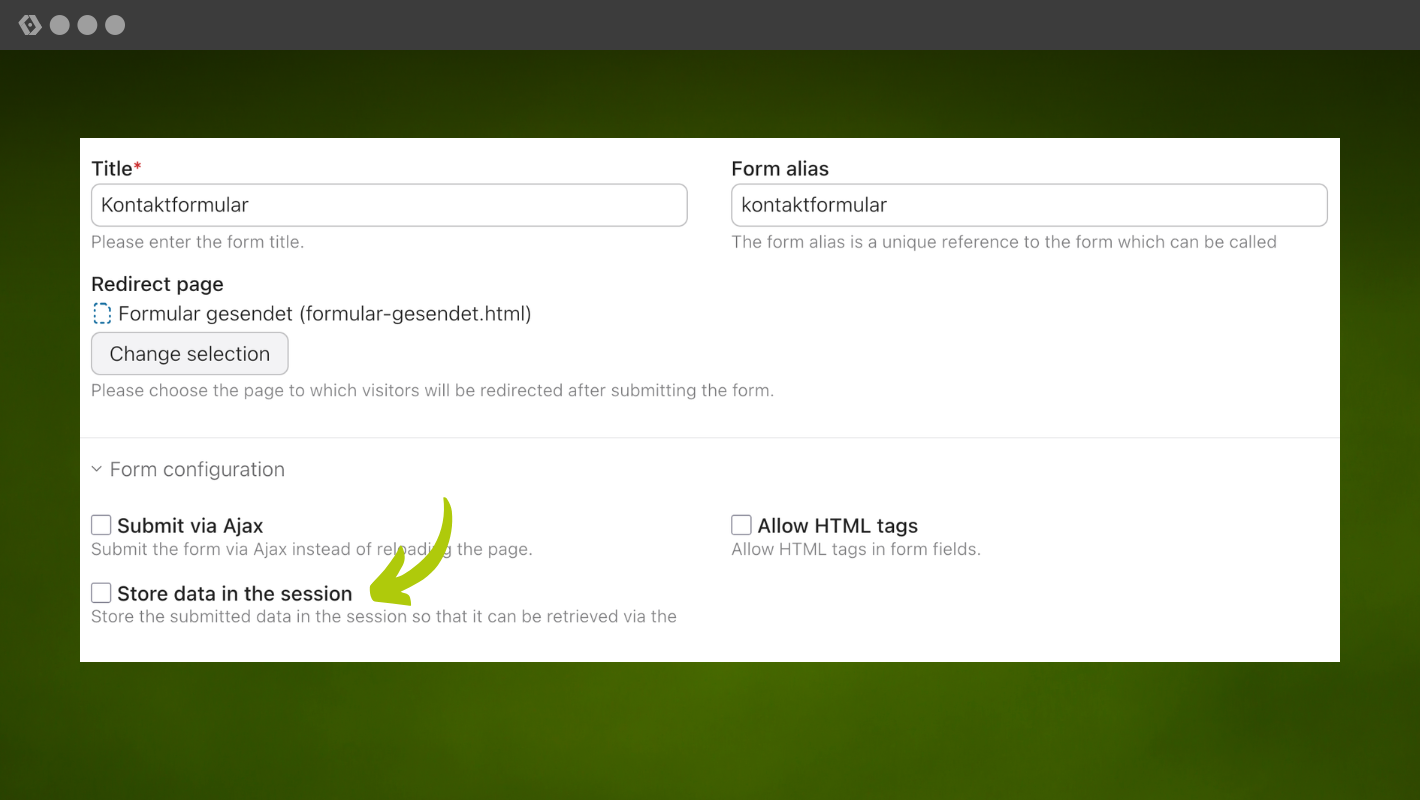
Until now, Contao has always stored form data temporarily in the session, even if no {{form_session_data::*}} insert tag was used. This created a cookie and disabled the HTTP cache for one minute.
In Contao 5.7, there is a new setting for each form that only activates session storage when it is actually needed. In many cases, this allows you to completely dispense with sessions and cookies in the frontend, which improves caching performance.
For all existing forms, the option is automatically enabled to ensure backwards compatibility. Check your forms and disable the option wherever you do not need access to the form data via the Insert tag.
Check your own programming
If you have made any customisations in the src directory, please check these as well and update the code to Contao 5.7.
Other points
- Adjust permissions: Enable new features for editors in the user group settings.
- Check log files: Check for new error messages in
/var/logs/prod-*.log, in Contao Manager under ‘Tools and System Log’ or in trakked.
Use new features
As well as new features, Contao 5.7 brings many usability improvements: a revamped breadcrumb trail, a new context menu, improved search filters and much more. There are also key features that you can configure as needed:
- ALTCHA spam protection: Switch the spam protection for your forms to ALTCHA. Contao 5.7 also features a handy floating mode that only displays the widget when the form is submitted.
- Passkeys: For added security, you can enable passkeys for the frontend and backend.
- Backend search: The new full-text search with faceting makes finding content significantly easier. To set this up, configure the
loupe-bridgeand the cron job framework: Set up backend search - Page layouts with Twig slots: Alongside the familiar page layout, you can use the new Twig layout with its own slots. Feel free to give it a try. However, this is not necessary for the migration.
You can find out more about all the new features in the announcements on contao.org and here on the trakked blog.
Conclusion
If you are running an installation that is due to be decommissioned or completely rebuilt by 2030 anyway, you can skip the Twig migration for now and still benefit from Contao 5.7. For everyone else, it’s worth the effort: whilst the update to Contao 5.7 is initially challenging and time-consuming due to the template migration to Twig, it prepares your installation perfectly for Contao 6 right from the start. Contao has always been known for a smooth migration, and that holds true here too. You can switch to 5.7 today and prepare everything so that the next step to 6 brings no major surprises.
Have we overlooked anything important? Leave a comment and we’ll update the guide.




Add a comment